Step 4: Set Up ACA Annual Reporting
A. Convert year-end ACA information

- make the changes in the Government Reporting module and update the source application (Payroll) with the new information, or
- update the source application (Payroll application) and re-convert the ACA information.

B. Set up ACA information
Have you converted W-2s or 1099s?
- Yes, I have converted W-2s or 1099s. Chances are good that you entered the federal ID number when you printed W-2s or 1099s. You’re good to go.
- No, I have not converted W-2s or 1099s. You need to enter your organization’s federal ID number in the field titled Federal ID Number. Click here for instructions.
How do I enter the federal ID number?
4. Click Save (CTRL+S).
Do I need to file electronically?

Have you purchased the Electronic Filing module?
-
Yes, we purchased the Electronic Filing module. You’re good to go.
-
No, we have not purchased the Electronic Filing module AND we are filing electronically. Contact your Account Manager at (800) 243-8275.
-
No, we do not need to file electronically. Make sure you have ordered Forms 1094/1095 from www.irs.gov. You’ll need enough to print one copy for each employee and one copy for the IRS.
Is this a different Electronic Filing module from the Electronic Filing module that I use for W-2 and 1099 Reporting? No, this is the same Electronic Filing module. If you have purchased the Electronic Filing module for W-2 and 1099 Reporting, you are ready to file electronic ACAs.Do you have a Transmitter Control Code (TCC)?
- Yes, we have a TCC to file ACA electronically. Remember, you cannot use the same TCC that you used to file W-2s and 1099s electronically to file ACA Forms 1094/1095 electronically. However, you can use the TCC for filing ACA electronically from the previous year.
- No, we do not have a TCC to file ACA electronically. Go to www.irs.gov to apply for a TCC. Applying for a TCC usually takes about 30 days.
The Government Reporting module shares the W-2 and 1099 electronic filing information with the ACA electronic file. If you need help, contact customer support for assistance at (800) 243-8275 or email us at support@caselle.com.
The electronic filing information is saved.
Is your employer a Designated Governmental Entity (DGE)?
A Designated Governmental Entity (DGE) is a “person or persons that are part of or related to the Governmental Unit that is the ALE Member and that is appropriately designated for purposes of these reporting requirements.” [www.irs.gov/pub/irs-pdf/i109495c.pdf]
Is your employer a Designated Governmental Entity?
-
Yes, my employer is a Designated Governmental Entity. You’ll need to fill in the name, address, ID number, and contact information for person or entity that will function as the DGE.
- No, my employer is NOT a Designated Governmental Entity. You can skip the section titled Designated Government Entity on the ACA Organization form.
If your organization is part of a state agency or federal agency or an Indian tribe, then your organization may be part of a designated government entity and you will need to fill in this section.
NameEnter the name of the government entity receiving the ACA reporting.Identification numberEnter the identification number of the government entity.Address, City, State/Province, Zip/Postal Code, and Country/RegionEnter the address for the government entity.Contact nameEnter the name of the person at the government entity who is the ACA contact. Remember to use the Contact Name box in the Designated Government Entity section instead of the Contact Name box at the top of the form.Contact telephoneEnter the telephone number of the ACA contact.
How do I choose the certifications of eligibility?
C. Run ACA Checkout
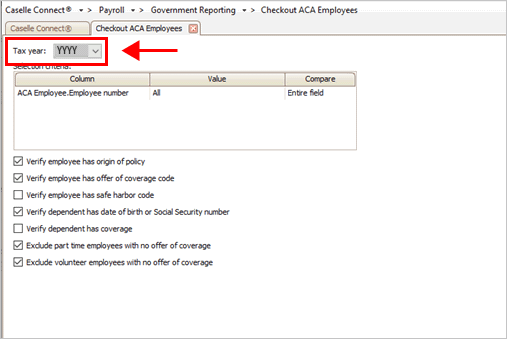
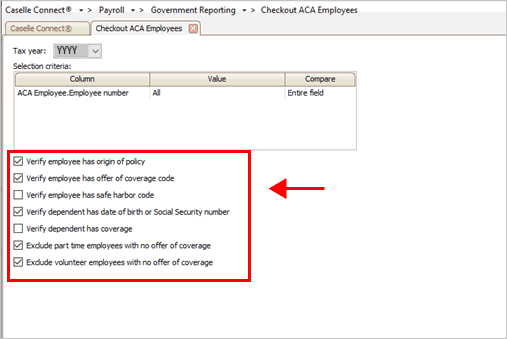
Verify employee has origin of policy
Select this checkbox unless your organization is self-insured or your organization does not use origin of policy.
Verify employee has offer of coverage code
Select this checkbox.
Verify employee has safe harbor code
- If your organization uses a safe harbor code, select this checkbox. Checkout will search for employees who have not been assigned to a safe harbor code.
- If your organization does not use a safe harbor code, do not select this checkbox.
Verify dependent has date of birth or Social Security number
If your organization is self-insured, select this checkbox.
Verify dependent has coverage
If your organization is self-insured, select this checkbox.
Exclude part-time employees with no offer of coverage
Employers are not required to provide part-time employees with an offer of coverage. Select this checkbox to remove part-time employees from the selection criteria.
Exclude volunteer employees with no offer of coverage
Employers are not required to provide volunteer employees with an offer of coverage. Select this checkbox to remove volunteer employees from the selection criteria.
- Yes, the Checkout ACA Employees Report had errors. You’ll want to fix the errors in the ACA Employees table (Government Reporting > Organization > ACA Employees) before you continue. Make a note of the fixed items so you can update the employee’s information in the source application (Human Resources, Payroll, or Timekeeping).
- No, the Checkout ACA Employees Report was error-free. You’re ready for the next step: Verify Employee Information to Check Status and Offer Coverage.
D. Verify Employee Information to Check Status and Offer of Coverage
Complete this section for all eligible employees. For each eligible employee, check the employee status and offer of coverage.
How do I check the employee status?
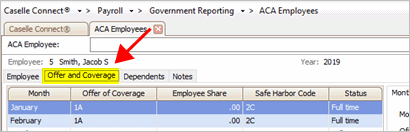
The Status column shows the employee status as full time or part time for each month of the year.
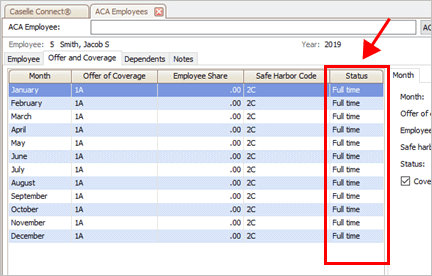
Is the employee’s status full-time or part-time?
- Yes, the employee’s status is full-time or part-time. Great!
- No, the employee’s status is not full-time or part-time. Use the Status drop-down menu to change the employee’s status to full or part-time for each month.
For self-insured employers, where the employee was offered coverage but the employee waived coverage, Government Reporting can't tell the difference between an enrolled employee or an employee that waived coverage. For those employees who are self-insured and employees who have waived coverage, you need to deselect the Covered checkbox. Clearing the checkbox means the employee will receive a 1095 Form, but the employee will not be included in the list of employees with health coverage.
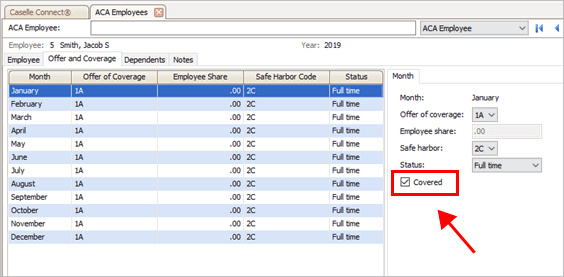
Is the employer self-insured or did the employee waive coverage?
- Yes, the employee is self-insured. Click to select the month or months the employee was self-insured and clear the checkmark from Covered checkbox.
- Yes, the employee waived coverage. Click to select the month or months the employee waived coverage and clear the checkmark from Covered checkbox.
- No, the employer was not self-insured and the employee did not waive coverage. Verify the Covered checkbox is selected for each month the employee was insured by the organization.
How do I verify the Offer of Coverage?

You should find an Offer of Coverage code listed for each month.
Does each month show an Offer of Coverage code?
- Yes, there’s an Offer of Coverage code listed for each month. You’re ready to review the Offer of Coverage codes for the next employee.
- No, one or more of the months does not show an Offer of Coverage code. Click to select the month that is missing the Offer of Coverage code and then use the Offer of Coverage field on the Month subtab to select a code.
How do I verify self-insured employees?
If the employee is self-insured, you’ll need to verify the dependent has coverage. Health insurance must be set up on the dependents.
E. Print Employee Forms 1094/1095
After you verify and check the employee information in the ACA Employees table, you’re ready to print Forms 1094/1095. Form 1094 is the transmittal report that includes your organization’s information, contact information, and the number of forms. Form 1095 is the form that the organization is required to submit on the employee’s behalf to show proof of coverage.
How many employees are employed by your organization?
-
We employ 49 employees or less AND we are self-insured. Use Forms 1094/1095-B.
-
We employ 49 employees or less AND we are NOT self-insured. No filing is required.
-
We employ more than 50 employees AND we are self-insured. Use Forms 1094/1095-C.
- We employ more than 50 employees AND we are NOT self-insured. Use Forms 1094/1095-C.
First, print Forms 1094/1095 to plain paper
Print Forms 1094/1095 to plain paper to make sure the correct information will print in the right place on the form.
Do this...
1. Open Connect Payroll > Government Reporting > 1094/1095s.
2. Load plain paper in the printer.
3. Use the Title menu to select the form type you want to print (B or C Forms).
4. Use the Tax Year menu to select the reporting year.
5. Click to select the checkbox titled Mark This As the Authoritative Transmittal.
6. Click to select the Forms tab.
7. Use the 1094 Form menu to select the 1094 form that you’ll be printing.
9. Use the Print x Forms per Record box to enter the number 1.
10. Click to select the checkbox titled Spool Forms.
11. Click Print (CTRL+P).
The Print Forms dialog box displays.
12. Click Yes.
The Print Setup (Forms) dialog box displays.

13. Clear the checkbox titled Close Program After Printing and then click OK.
Second, print actual Forms 1094/1095
Now that the information prints in the correct place on the form, you’re ready to print the 1094/1095 information to the actual Forms 1094/1095.
Do this...
1. Open Connect Payroll > Government Reporting > 1094/1095s.
2. Load Forms 1094/1095 in the printer.
3. Use the same settings that you used to print Forms 1094/1095 to plain paper.
4. Click Print (CTRL+P).
The employee information prints to Forms 1094/1095. The printed Forms 1094/1095 is the information that you will give to the employee.
F. Create Electronic File
This section will show you how to create an electronic file for ACA Reporting. Not all organizations need to submit an electronic file and not all organizations have the same number of employees and full-time equivalent employees.
How many information returns for 1095s + 1099s + W-2s is your organization filing?
-
We are filing less than nine information returns. You are not required to file electronically.
- We are filing ten or more information returns. You are required to file electronically.
Preparation
-
You will need a TCC (Transmitter Control Code) from the IRS. If you filed W-2s or 1099s electronically, you cannot use the same TCC that you used to file W-2s and 1099s. You can use the same TCC to file electronic ACAs as you used last year. To apply for a TCC to file electronic ACAs , go to www.irs.gov and log into the eServices site to fill out the TCC application form for ACA.
-
You will need a Federal ID number saved in the Government Reporting Organization table.
-
You will need to set up the ACA electronic filing information in the Government Reporting Organization table.
- You will need to purchase and install the Electronic Filing module in Caselle. Contact your Client Relationship Manager (CRM) to purchase the Electronic Filing module at (800) 243-8275.
Creating electronic file
1. Open Connect Payroll > Government Reporting > Create Electronic ACA File.
2. Use the Tax Year menu to select the ACA reporting year.
The File Name box displays the file path to the directory where the electronic ACA file will be created. You do not need to enter a file name. Connect uses the instructions from the IRS to create the file name for the ACA electronic file.

5. Use the Transmitter Control Code box to enter your organization’s Transmitter Control Code (TCC).
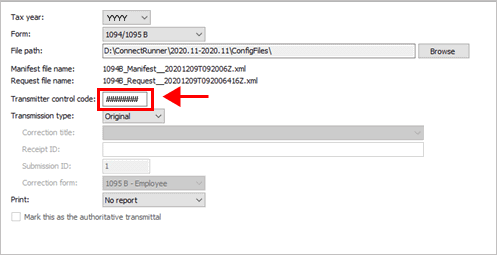
6. Use the Transmission Type menu to select Original.
What if this my first time using the Government Reporting module to create the file for filing ACAs electronically? You will need to create a test transmission file and then follow the instructions on the IRS website for submitting a test electronic file. If you have already used the Connect Government Reporting module to submit ACAs electronically, then choose Original as the transmission type. 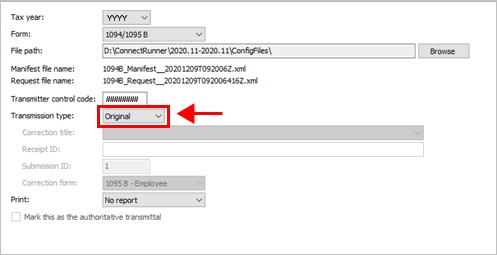
7. Use the Print menu to select No Report.
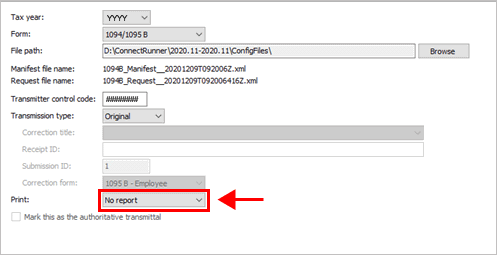
Connect creates the electronic file for the selected ACA Form 1094/1095 in the destination file. The next step is to use the Affordable Care Act Information Returns (AIR) website to upload the eFile to send to the IRS.
You have completed the ACA Checklist. You’re done!
Related Articles
How do I add an ACA correction?
Use a correction file when the transmission status is accepted with errors. Use the Acknowledgement File to enter corrections in the employee information and employer information and then submit the correction file to the IRS. Important! None of the ...ACA FAQs
Videos What about my employees who did not accept health insurance coverage? ACA is a reporting of health insurance that was offered to the employee. It does not report if the employee accepted the health insurance offer. So, ACA reporting tells the ...Step 3: Set Up Human Resources
Set up the ACA Reporting tools in the Human Resources application. ACA Reporting uses the information from Human Resources to show an employee’s benefits and record when an employee was offered coverage. A. Set up contact information IRS requests the ...Step 2: Set Up Timekeeping
If this is your first time using Connect to generate ACA forms and electronic file, you will need to set up the ACA options for the Timekeeping application. Connect uses the Timekeeping application to determine if an employee is a full-time ...Step 1: Set Up Users
Make sure the people who will run the ACA forms and reports have access to the routines, reports, and forms for ACA reporting. To print the ACA forms and create the ACA electronic file, Connect will use information from the Human Resources and ...